Manage Your IPRA Request
After you submit an IPRA request, track its status, download production documents and respond to requests for clarification from My IPRA Requests. Legal Counsel updates the request as it is processed, and you receive an email for each change.
The Tier 1 or Tier 2 user who submitted the request.
View Your Requests
-
Click My IPRA Requests in the side menu. The most recent request appears at the top of the list.
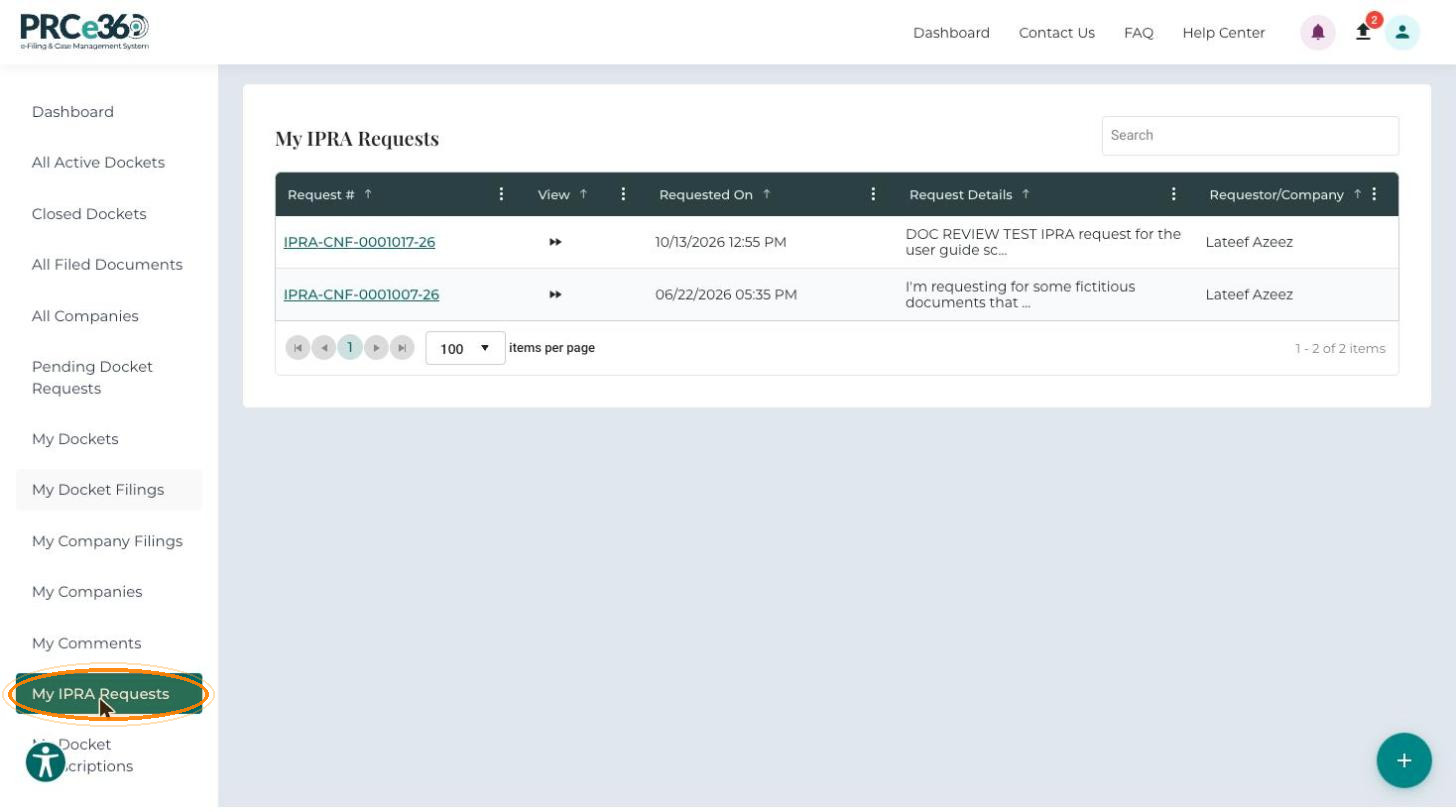 Columns
- Request #
- View
- Requested On
- Request Details
- Requestor/Company
-
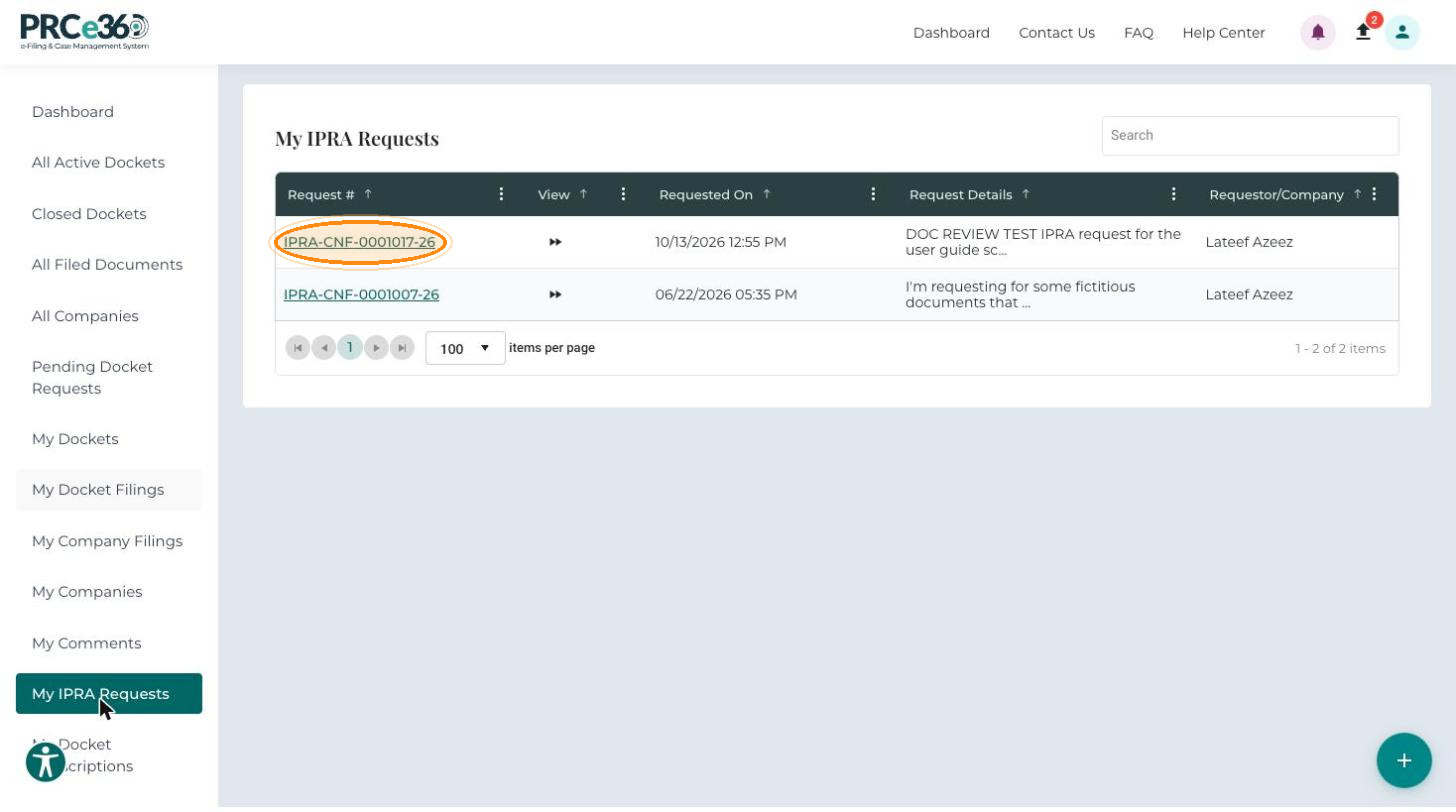
Click the Request # to open the request in IPRA 360.
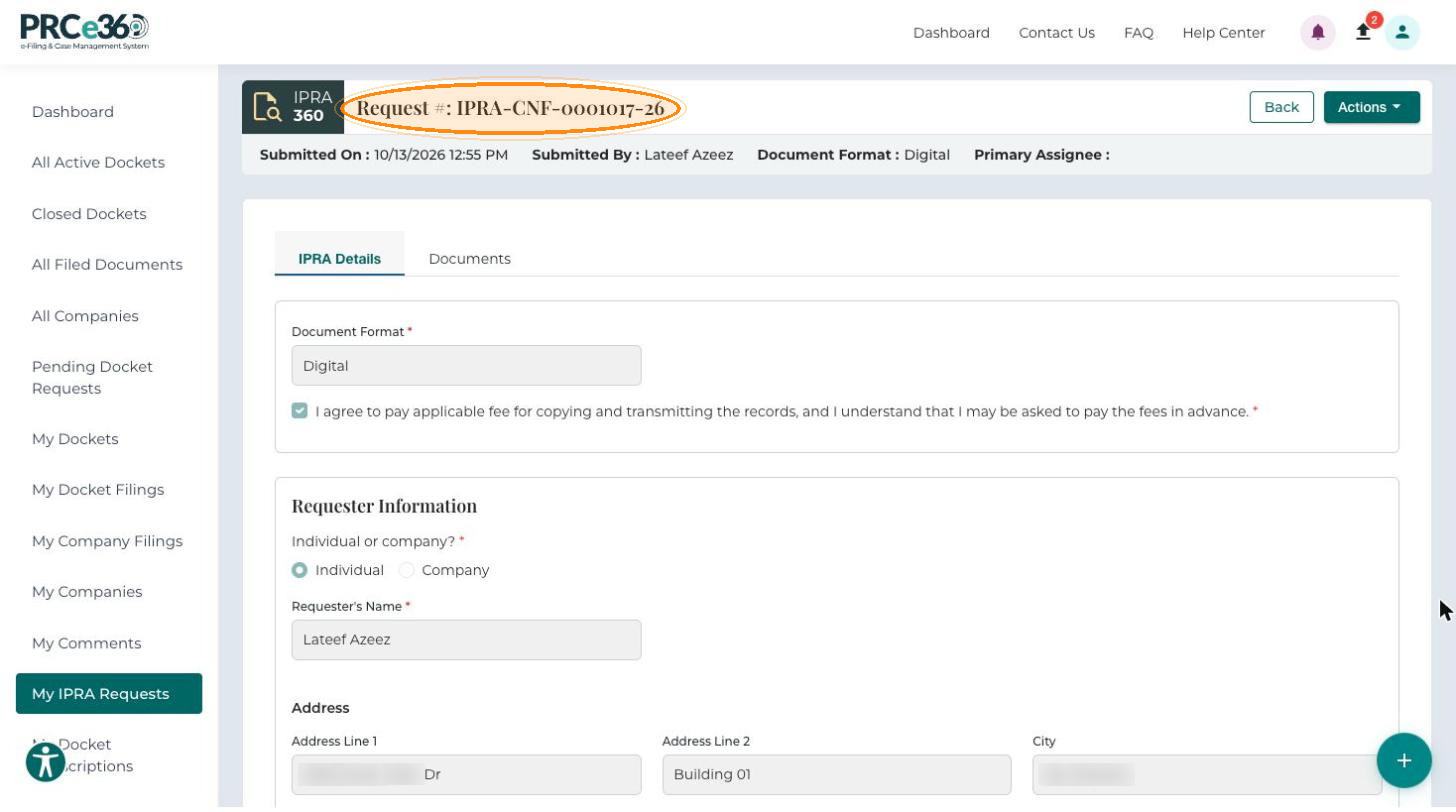
The top of IPRA 360 shows the Request #, Submitted On, Submitted By, Document Format and Primary Assignee (the PRC staff member handling the request, once assigned). The IPRA Details tab shows the information you submitted, and the Documents tab shows the records produced for you.
Withdraw a Request
If you no longer need the records, you can withdraw the request.
-
Open the request in IPRA 360.
-
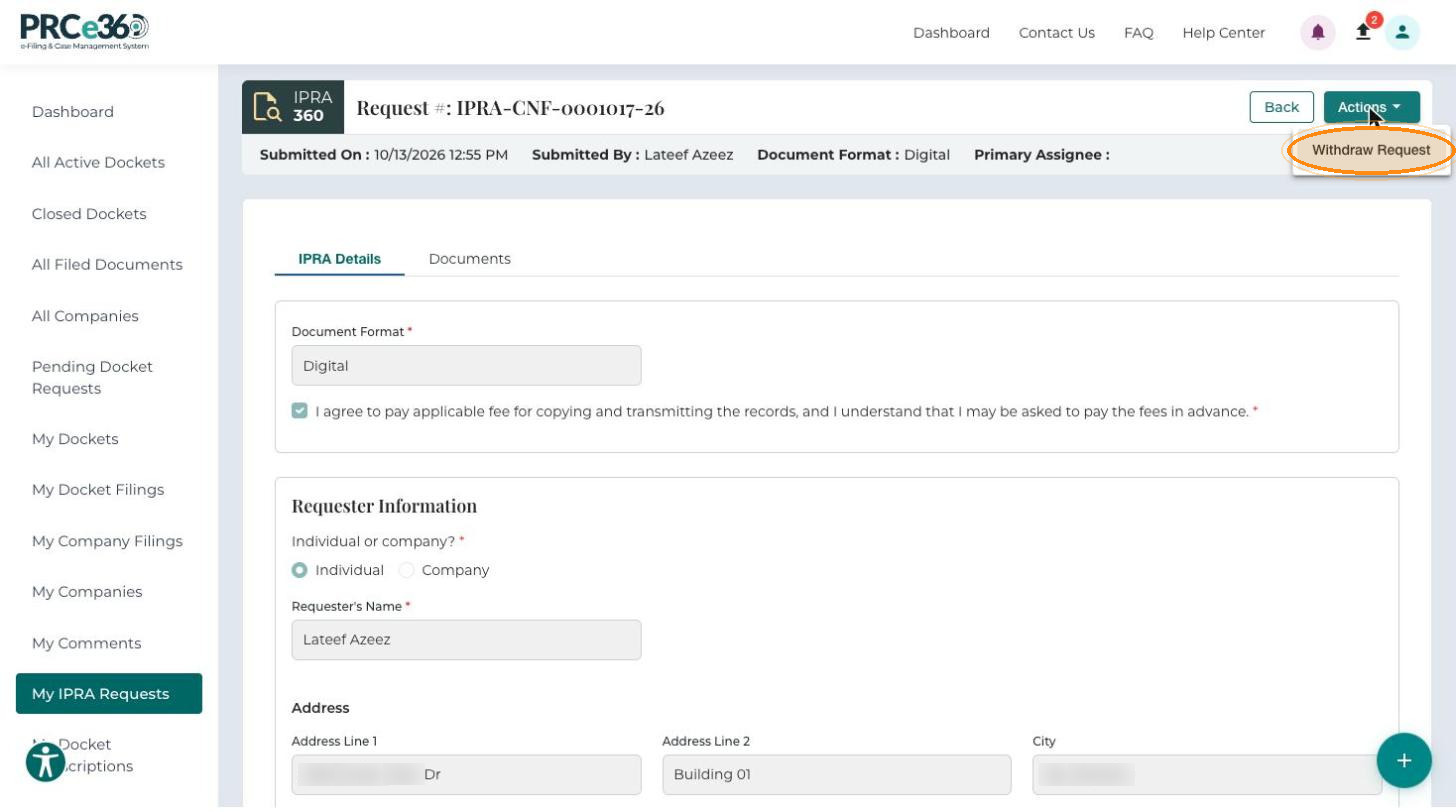
Click Actions at the top right and select Withdraw Request.
Download Production Documents
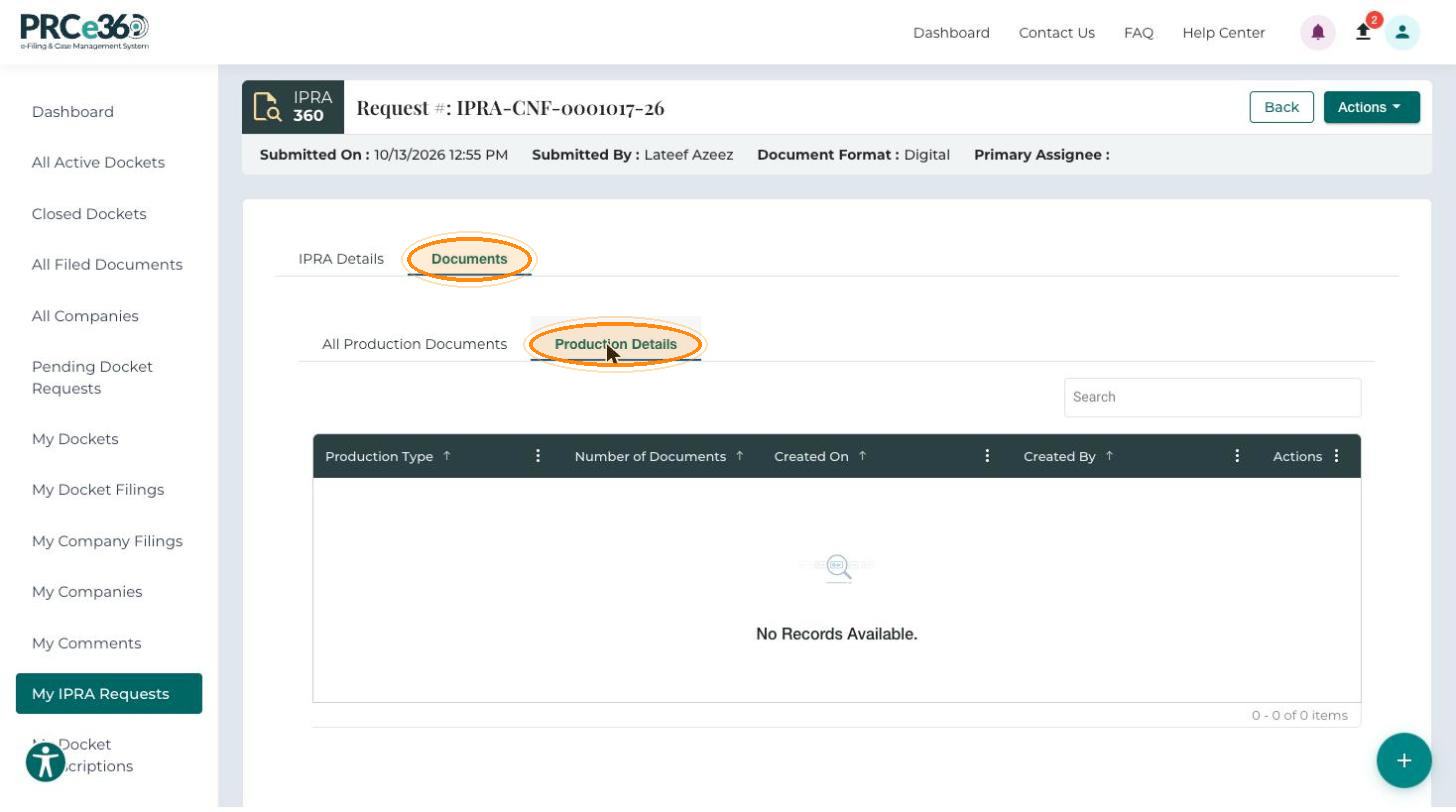
When Legal Counsel adds production documents (partial or full), they appear on the request's Documents tab. The tab has two sub-tabs:
-
All Production Documents – every document produced for the request.
Columns- Document #
- Document Title
- Document Type
- Document Description
- Responsive
- File Size
- Format
- Source
- Author
-
Production Details – one row for each production (for example, a partial or full production).
Columns- Production Type
- Number of Documents
- Created On
- Created By
- Actions
To download a production:
-
Open the request in IPRA 360 and click the Documents tab.
-
Click Production Details.
-
In the Actions column, click the ⋮ (three dots) icon and select Download.
Respond to a Clarification Request
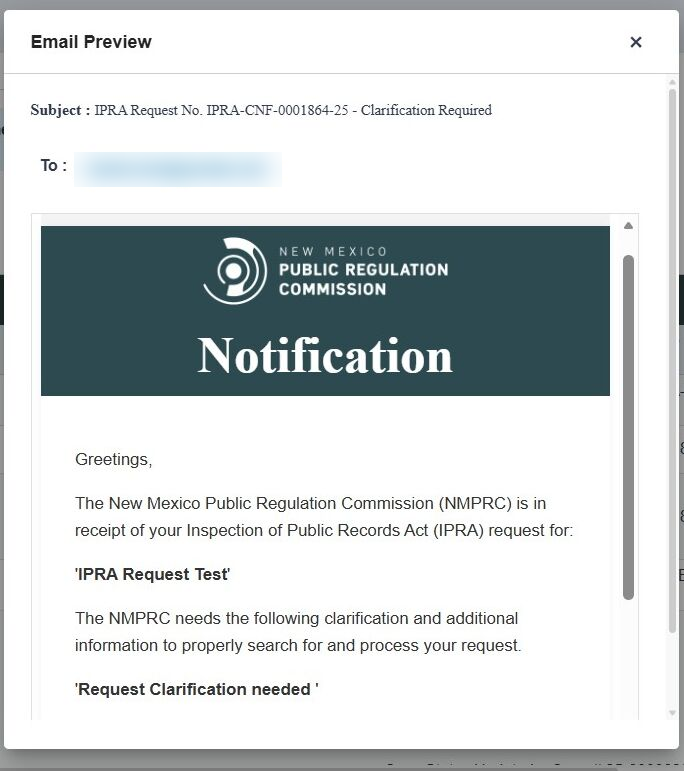
If Legal Counsel needs more information, the status changes to Clarification Required and you receive an automated email describing what is needed. You can also see the status on your dashboard.
-
Open the request in IPRA 360.
-
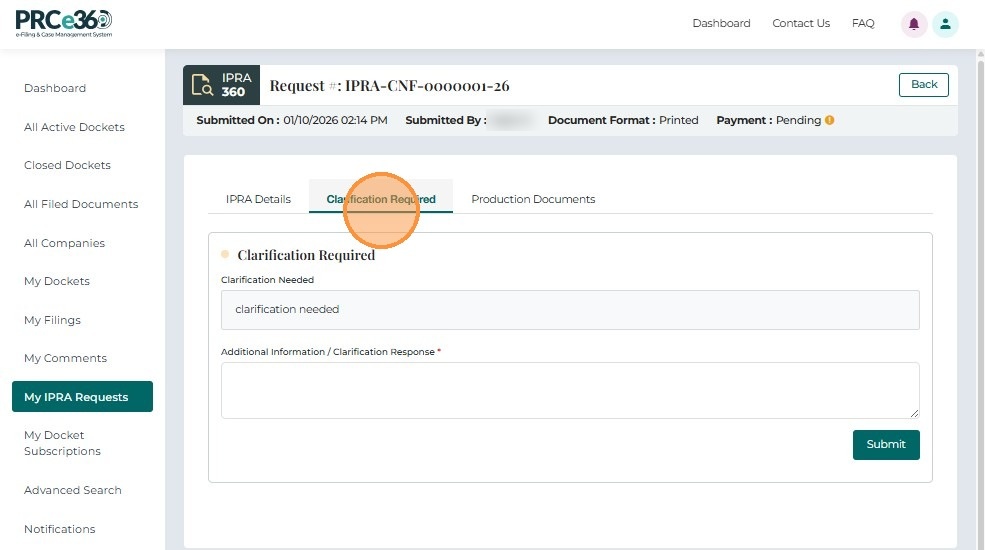
Click the Clarification Required tab and read the Clarification Needed details.
-
Enter your answer in Additional Information / Clarification Response (required).
-
Click Submit.
Pay for a Request
When Legal Counsel issues a Payment Request, you receive an automated email with the Payment Amount Due.
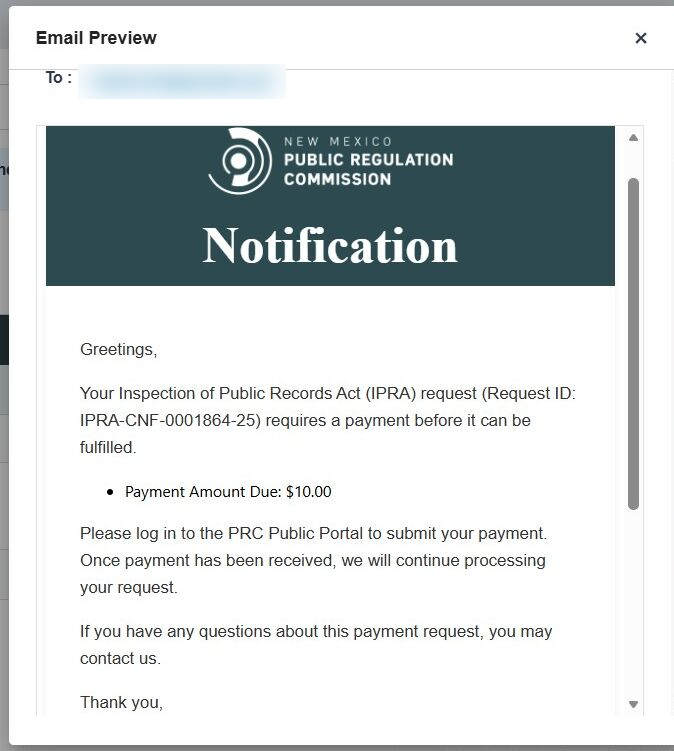
To pay, sign in to the portal and submit the payment, coordinate the payment with the NMPRC, or send a check. Once the payment is received, Legal Counsel records it and processing continues.
Other Status Updates
For each of these outcomes you receive an automated email.
| Status | What happens |
|---|---|
| Extension Request | Legal Counsel needs more time to process the request. |
| Wrong Custodian – Closed | Legal Counsel determined that the request was filed with the wrong custodian. |
| Broad and Burdensome | Legal Counsel found the request too broad. The email explains the issue and the next steps. |
| Rejected – Closed | Legal Counsel rejected the request. |
| Closed | Legal Counsel has finished processing the request. |
For what to do in each case, see Request Statuses.